
Time4Bets can be used on iPhone and iPad through a TestFlight client available from the official site, with iOS 14 or newer required. The client provides access to the same casino lobby, sportsbook and cashier as the website, using the same account and US-dollar balance. The official Telegram bot and the mobile site in Safari are also available as alternative access options. Time4Bets operates under Anjouan Gaming Authority licence No. ALSI-202603024-FI1. Before registering, depositing or playing, each user should check whether online betting and casino activity are permitted in their jurisdiction. The platform is available through the official website.
This page covers the main iOS access options, device requirements, TestFlight installation, first login, alternative mobile routes and common troubleshooting steps. The client connects to the same Time4Bets account and balance used on the website.
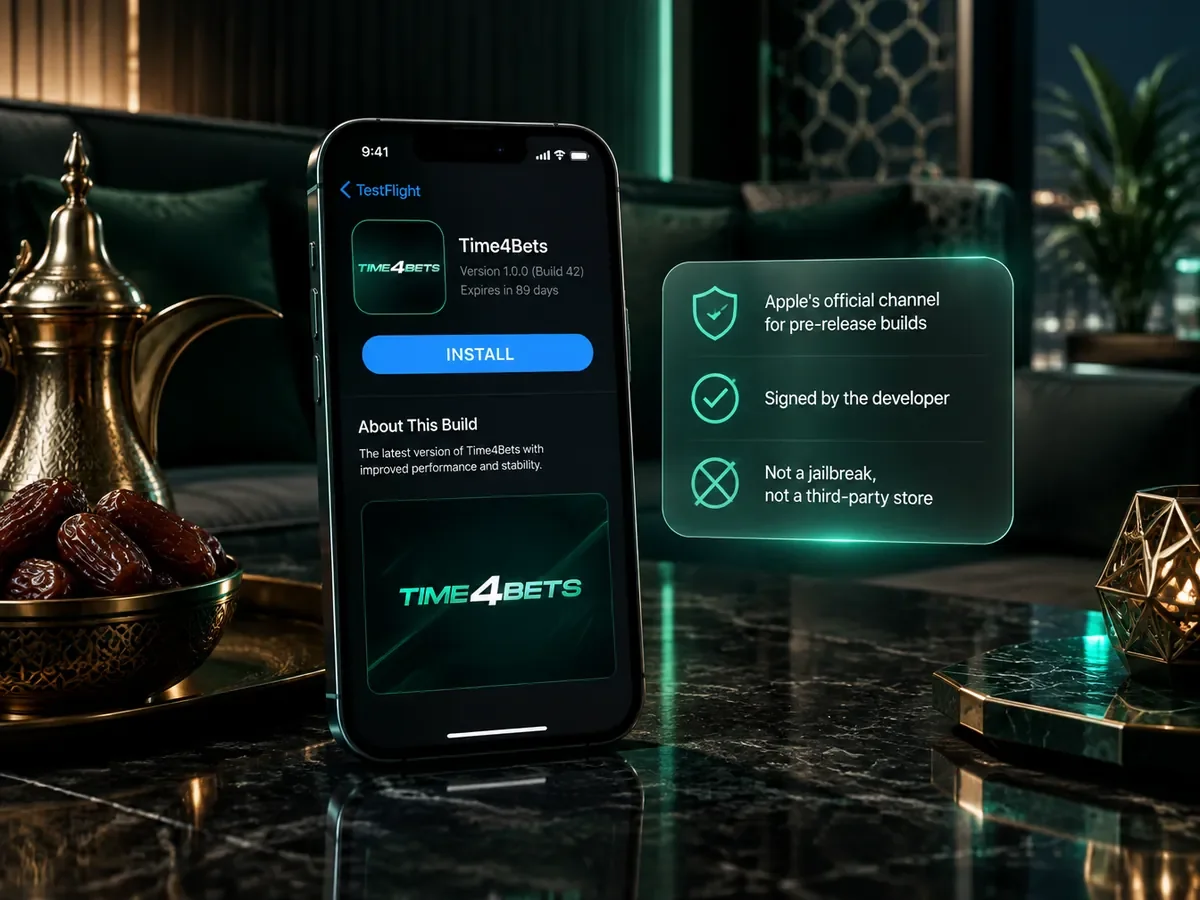
Time4Bets Access Through TestFlight
Time4Bets distributes its iPhone client through TestFlight, Apple’s platform for pre-release and limited-distribution builds. TestFlight itself is installed from the App Store, while the Time4Bets client is delivered and updated through Apple’s infrastructure. The client uses the same account, casino lobby, sportsbook and cashier as the website. Users who prefer not to install the TestFlight client can access the platform through the official Telegram bot or Safari instead.
Requirements Before Installing
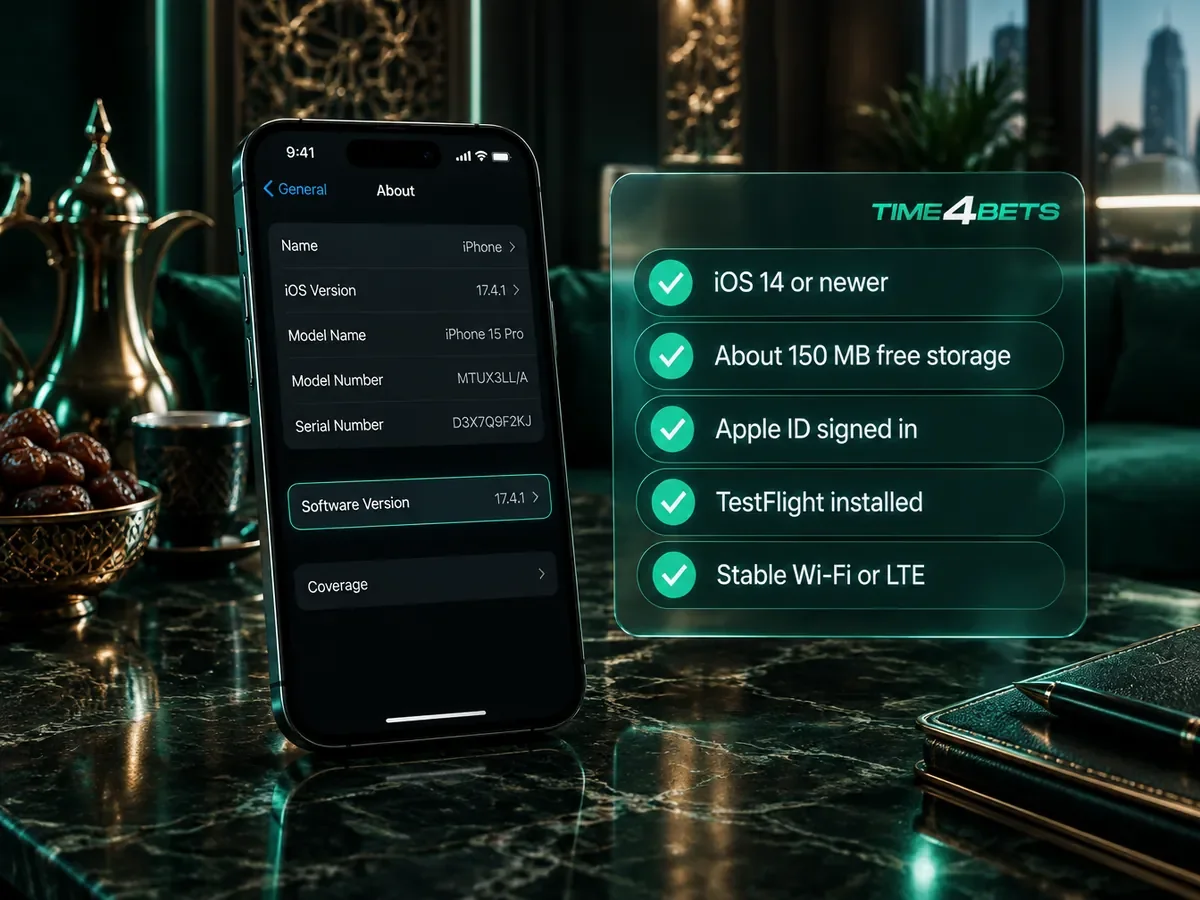
Five things are needed before installing the Time4Bets iOS client:
- iOS 14 or newer on the iPhone or iPad;
- about 150 MB of free storage for TestFlight and the client together;
- an active Apple ID signed in on the device;
- the TestFlight app, installed from the App Store;
- a stable connection, Wi-Fi or LTE, for the download and the first launch.
The iOS version is shown under Settings, General, About, on the line marked Software Version. The Time4Bets client requires iOS 14 or later. If the device runs an older version, update iOS through Settings, General, Software Update, or use the mobile website in Safari instead.
Installing the iPhone Client Step by Step
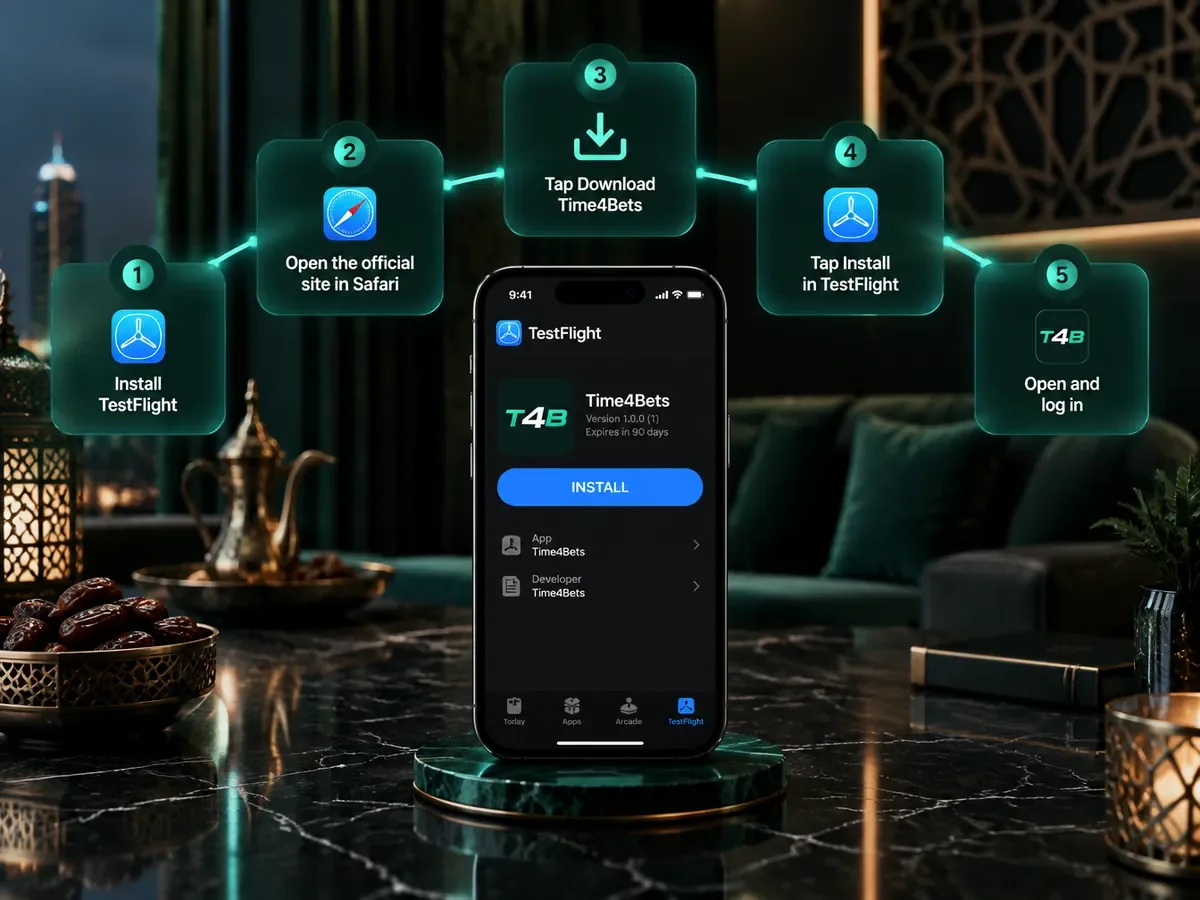
The Time4Bets iPhone installation uses the following steps:
- Install TestFlight from the App Store and open it once;
- Open the official site in Safari;
- Tap “Download Time4Bets”; TestFlight opens with the build ready;
- Tap “Install” in TestFlight and wait for the icon to appear on the home screen;
- Open the client and log in with the existing account, or register if there is none.
Updates are delivered through TestFlight. When a new build is available, an Update button appears next to the client and installs the new version without changing the Time4Bets account, balance or history. TestFlight builds can expire after a limited period; if that happens, reopen the official site and repeat the installation steps to install the current build.
First Launch and Login
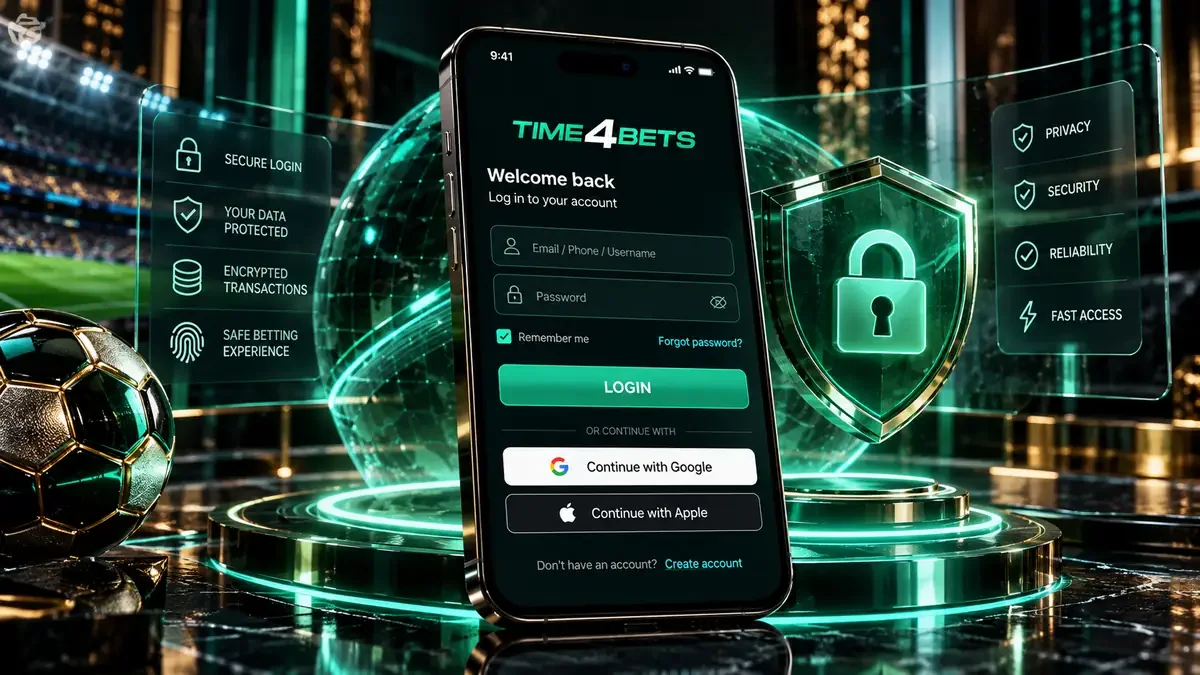
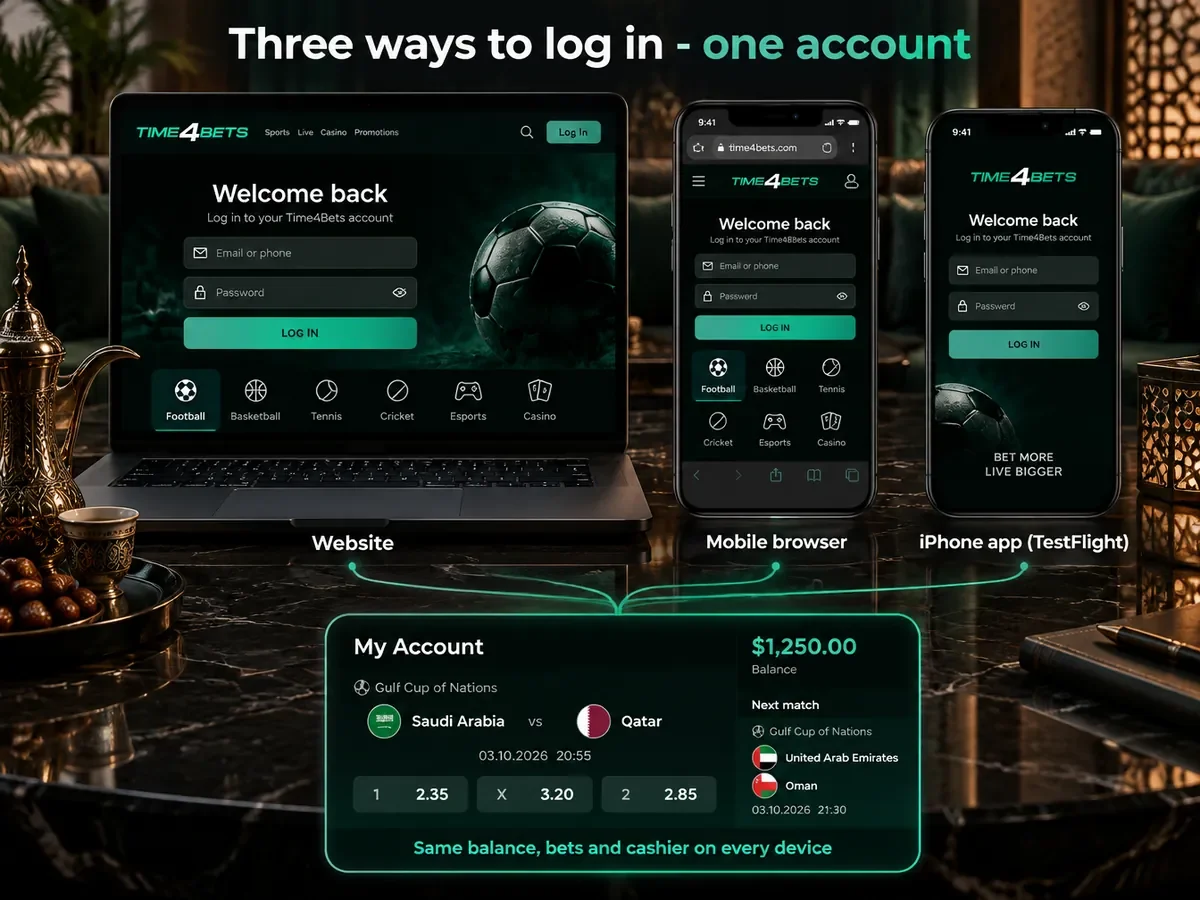
On first launch, the client asks for a language and then opens the login screen. The same email address or phone number and password used on the website work here because the client and site share one account, one balance and one history. New users can also register from the same screen. The client may request permission to send notifications for bet settlements and cashier activity; this can be enabled or disabled in iOS settings. Login, two-factor authentication and password recovery are described on the login page.
Alternative: Telegram Bot and Safari
If TestFlight is unavailable or inconvenient, Time4Bets can also be accessed through the official Telegram bot or the mobile website in Safari. The Telegram bot provides access to the main casino, sportsbook and cashier functions after /start and is described on the bot page. In Safari, the site can be added to the home screen through the Share menu and “Add to Home Screen”. All three routes use the same Time4Bets account and balance.
Common iOS Issues
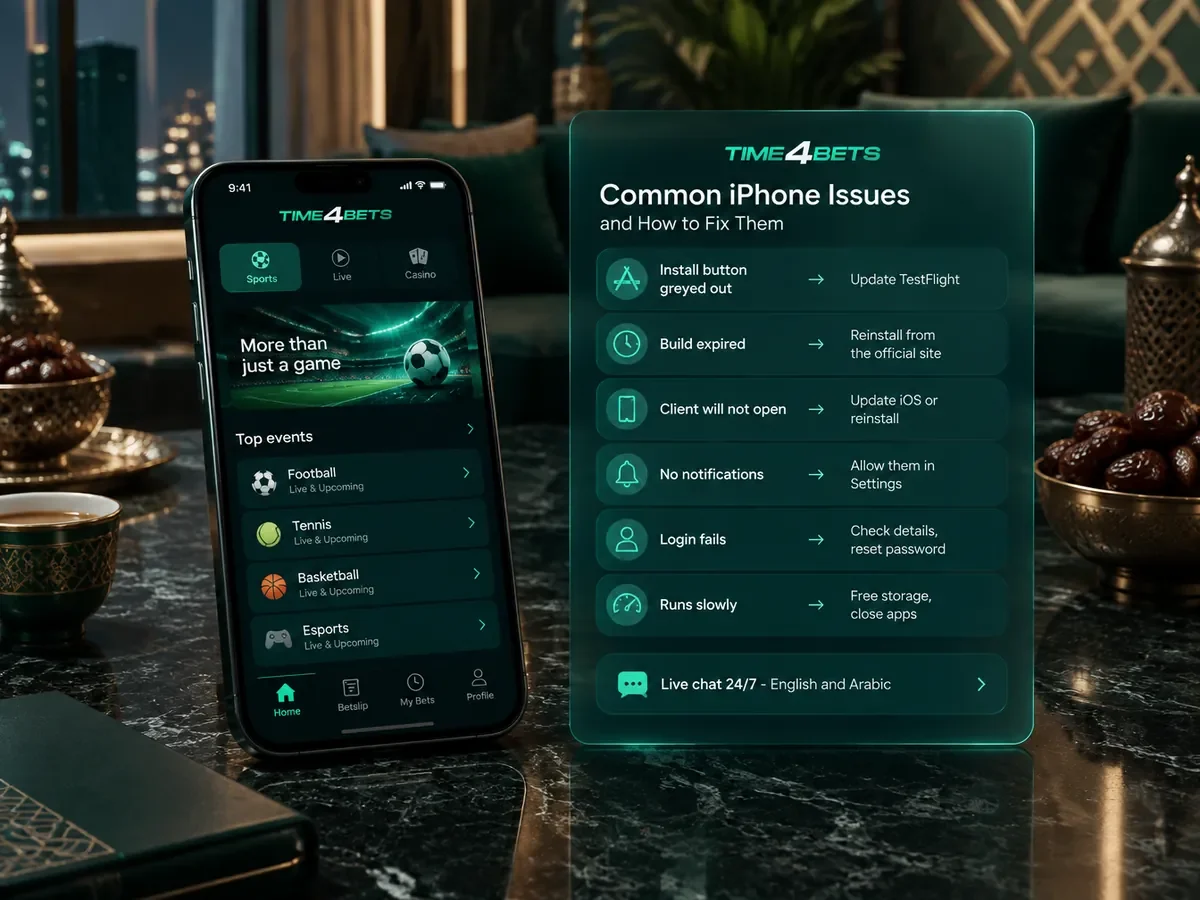
Common iOS issues can usually be resolved with the following checks:
- the Install button in TestFlight is greyed out: update TestFlight from the App Store, then reopen the link;
- the build has expired: reinstall from the official site, steps 2 to 4 above;
- the client will not open: update iOS, or delete the client and reinstall it;
- no notifications arrive: allow them under Settings, Notifications, for the client;
- login fails: check the email or phone number, then use password recovery on the login screen;
- the client runs slowly: free storage on the device and close background apps.
If these steps do not resolve the issue, contact 24/7 live chat and provide the iOS version and a screenshot where relevant. Live casino streams depend on connection quality, so unstable video may be caused by limited mobile data or Wi-Fi bandwidth rather than the client itself.
iOS App FAQ
Is there a Time4Bets app in the App Store?
The Time4Bets iOS client is distributed through TestFlight from the official site rather than through a standard public App Store listing.
Is TestFlight safe to use?
Yes. TestFlight is Apple’s own application, installed from the App Store, and it delivers the Time4Bets build through Apple’s infrastructure.
Do I need a separate account for the app?
No. The iOS client, website, Telegram bot and Safari use the same Time4Bets account, balance and history.
Does it work on iPad?
Yes. The Time4Bets iOS client can be installed on an iPad running iOS 14 or newer through the same TestFlight process, and the interface adapts to the larger screen.
How do I update the client?
Updates are installed through TestFlight. When a new build is published, an Update button appears next to the client. If the current build has expired, reopen the official Time4Bets site and install the latest available version through TestFlight.